
How Can I Update Instagram? Step-by-Step Guide for iPhone and Android (2026)
Your friends are using a shiny new Instagram feature, and you can't find it anywhere. Or the app keeps crashing, freezing or logging you out. Nine times out of ten, the fix is simple: you need the latest version.
If you've been asking "how can I update Instagram?", this guide has you covered. We'll show you how to get the IG update on iPhone and Android, how to turn on automatic updates, and what to do when the new Instagram update still isn't showing.
Why You Should Keep Instagram Updated
Instagram releases updates regularly. Each one can include:
- New features, such as new editing tools, Reels options, stickers and messaging features.
- Bug fixes that stop crashes, freezing and login problems.
- Security patches that help protect your account.
- Performance improvements so the app runs faster and uses less battery.
Running an old version means you miss out on features and may run into problems that have already been fixed.
How to Update Instagram on iPhone
Here's how to get the new update on IG if you use an iPhone or iPad:
- Open the App Store.
- Tap your profile picture in the top right corner.
- Scroll down to the Upcoming Automatic Updates or Available Updates section.
- Find Instagram in the list.
- Tap Update next to it.
- Wait for the download to finish, then open Instagram.
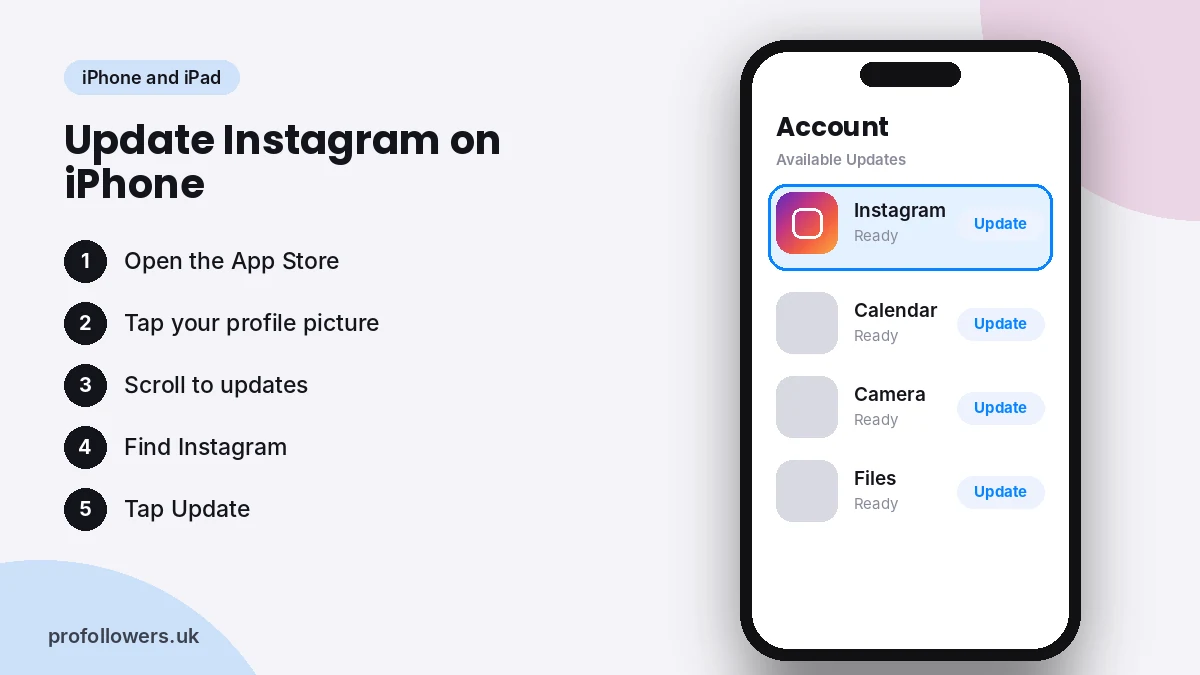
Quicker option: search "Instagram" in the App Store. If an update is available, you'll see an Update button instead of Open.
Tip: pull down on the updates list to refresh it. Sometimes the latest version doesn't appear until you do.
How to Update Instagram on Android
To get the new Instagram update on an Android phone:
- Open the Google Play Store.
- Tap your profile icon in the top right corner.
- Tap Manage apps and device.
- Tap Updates available.
- Find Instagram and tap Update.
- Once it's installed, open the app.
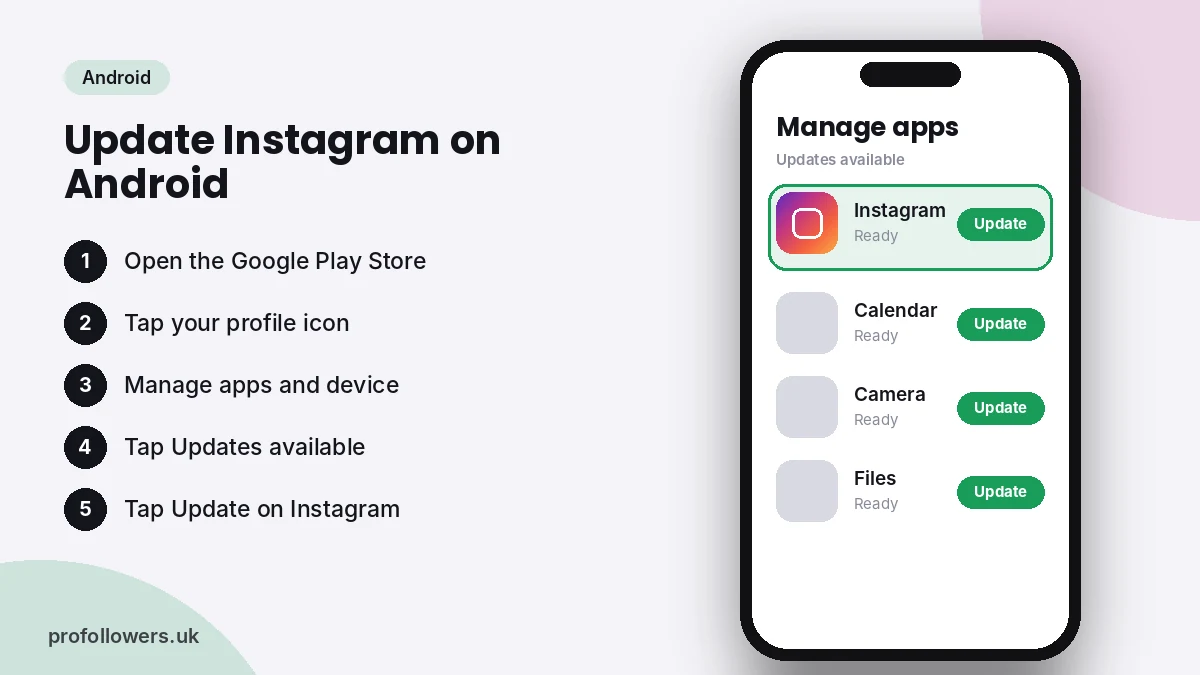
Quicker option: search "Instagram" in the Play Store and tap Update on the app page.
How to Turn On Automatic Instagram Updates
Never want to wonder how to get the IG update again? Switch on automatic updates and your phone will handle it for you.
On iPhone
- Open Settings.
- Tap App Store.
- Turn on App Updates under Automatic Downloads.
On Android
- Open the Google Play Store and search for Instagram.
- Open the Instagram app page.
- Tap the three dots in the top right corner.
- Tick Enable auto update.
| Device | Manual update | Automatic update setting |
|---|---|---|
| iPhone or iPad | App Store, profile picture, Update | Settings, App Store, App Updates |
| Android | Play Store, Manage apps and device, Updates | Instagram page in Play Store, three dots, Enable auto update |
| Desktop browser | No update needed | instagram.com is always the latest version |
How to Update Instagram on a Computer
If you use Instagram on a laptop or desktop through your web browser at instagram.com, there's nothing to update. The website always runs the latest version. If something looks broken, try these steps:
- Refresh the page.
- Clear your browser's cache and cookies.
- Update your browser to the latest version.
- Try a different browser.
How to Upgrade IG When the Update Isn't Showing
Sometimes you've updated the app and the new feature still isn't there. Here's why, and how to fix it.
1. Features roll out gradually
Instagram often releases new features to a small group of users first, then expands over days or weeks. Even with the latest version, you may need to wait your turn. This is the most common reason the new update on IG seems "missing".
2. Restart the app
Close Instagram fully, then reopen it. Many new features only activate after a fresh start.
3. Log out and back in
Go to your profile, open the menu, scroll down and tap Log out. Then log back in. This can refresh your account settings.
4. Clear the cache (Android)
Go to Settings, then Apps, then Instagram, then Storage, and tap Clear cache. This removes temporary files without deleting your account data.
5. Offload or reinstall the app (iPhone)
Go to Settings, then General, then iPhone Storage, then Instagram, and tap Offload App. Reinstall it from the same screen. Your data stays safe, but make sure you know your password first.
6. Update your phone's software
New Instagram versions may need a recent version of iOS or Android. Check Settings for a system update.
7. Check your storage
If your phone is almost full, updates may fail to download. Delete a few old videos or unused apps to free up space.
Common Instagram Update Problems and Fixes
| Problem | Likely cause | Fix |
|---|---|---|
| No update button | You already have the latest version | Refresh the updates list or check again later |
| Update stuck on "pending" | Weak connection or other downloads queued | Switch to Wi-Fi and pause other downloads |
| Update fails | Not enough storage | Free up space and try again |
| New feature missing | Gradual rollout | Wait a few days and restart the app |
| App crashes after updating | Corrupted cache or install | Clear cache or reinstall the app |
| Can't install latest version | Old phone software | Update iOS or Android |
Should You Join the Instagram Beta?
Android users can join Instagram's beta programme through the Google Play Store to try some features before everyone else. Open the Instagram page in the Play Store, scroll down and look for the option to become a tester.
Keep in mind that beta versions can be less stable. If you rely on Instagram for your business, the regular version is usually the safer choice.
Get the Most Out of New Instagram Features
Once you're on the latest version, make the most of it. New features are often favoured while they're fresh, so experimenting early can help your content reach more people.
A few ideas:
- Try new Reels tools early and post while they're trending.
- Use new stickers in Stories to boost replies and interaction.
- Test new post formats to see what your audience responds to.
- Watch your growth after each change with our free Instagram follower counter.
Great features only go so far if your posts don't get seen. Many UK creators and businesses give new content a head start with real Instagram views on their Reels, or build a stronger profile with real Instagram followers, delivered gradually with no password needed. You can also save your favourite Reels and videos with our free Instagram video downloader.
Frequently Asked Questions
How can I update Instagram on my phone?
On iPhone, open the App Store, tap your profile picture and tap Update next to Instagram. On Android, open the Play Store, go to Manage apps and device, and tap Update next to Instagram.
How do I get the new update on IG if it isn't showing?
Instagram rolls out many features gradually, so you may need to wait. Restart the app, log out and back in, and make sure both Instagram and your phone's software are fully up to date.
How do I know if Instagram is up to date?
Search for Instagram in the App Store or Play Store. If you see Open instead of Update, you already have the latest version.
Is it free to update Instagram?
Yes. Instagram updates are always free. You never need to pay to upgrade IG.
Will updating Instagram delete my photos or messages?
No. Updating the app keeps your posts, messages and settings. Your content is stored on your account, not just on your phone.
Final Thoughts
So, how can you update Instagram? Head to the App Store or Google Play, tap Update, and switch on automatic updates so you never fall behind. If a new feature still isn't showing, give it a little time, restart the app and check your phone's software. Stay updated, try new features early, and give your content every chance to be seen.